Connect Claude to your Space with MCP, step by step
Claude then reads the same context as your team and saves its work as pages and tables people can open, comment on and assign.
Guide · AI Strategy · November 11, 2026 · 3 min read
On this page
You have a good session with Claude. It writes a brief, a plan, a table of competitors. Then the chat scrolls away, and the work stays in your account where nobody else can build on it.
You can fix that by connecting Claude to a shared Space over MCP (model context protocol). Claude then reads the same context as your team and saves its work as pages and tables people can open, comment on and assign.
This guide connects Claude to ActVox, a shared Space that people write in and AI agents connect to. It works in claude.ai and in Claude's desktop and mobile apps. It's the Claude version of our ChatGPT guide.
What you need
- An ActVox account
- A Claude account where you can add a custom connector
Step 1: Add ActVox as a custom connector
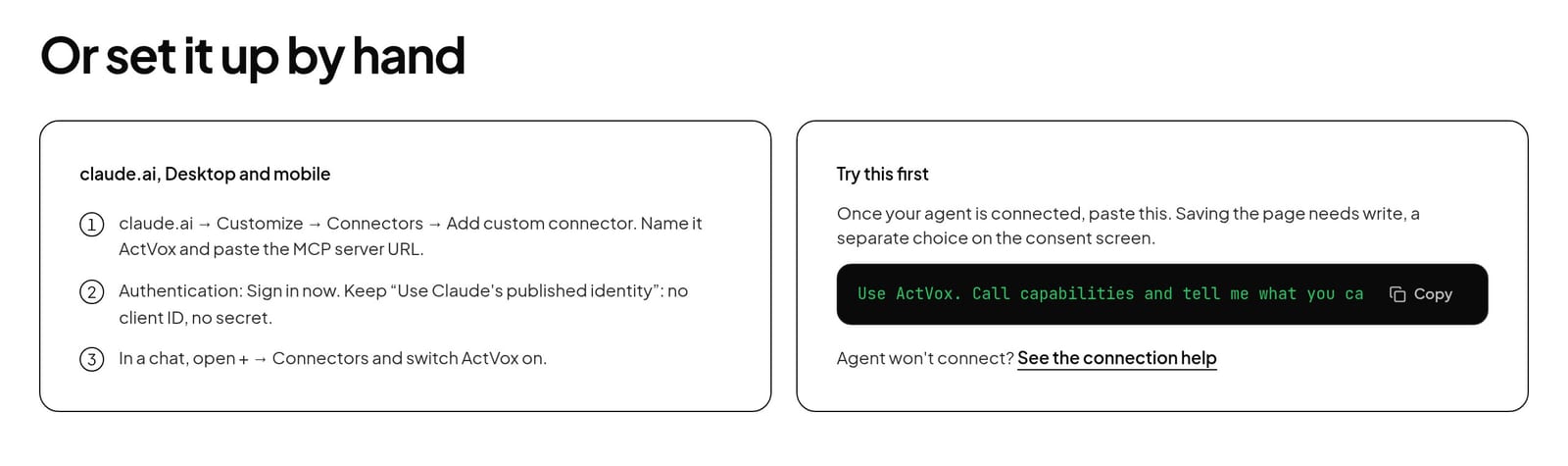
In claude.ai, open Customize, then Connectors, then Add custom connector. Name it ActVox and paste the MCP server URL.
https://api.actvox.com/mcp
Step 2: Sign in and choose the permissions
For Authentication, choose Sign in now and keep "Use Claude's published identity". There is no client ID or secret to copy.
The ActVox consent screen opens. If you don't have an account yet, signing in creates one with a Space. Then pick what Claude may do:
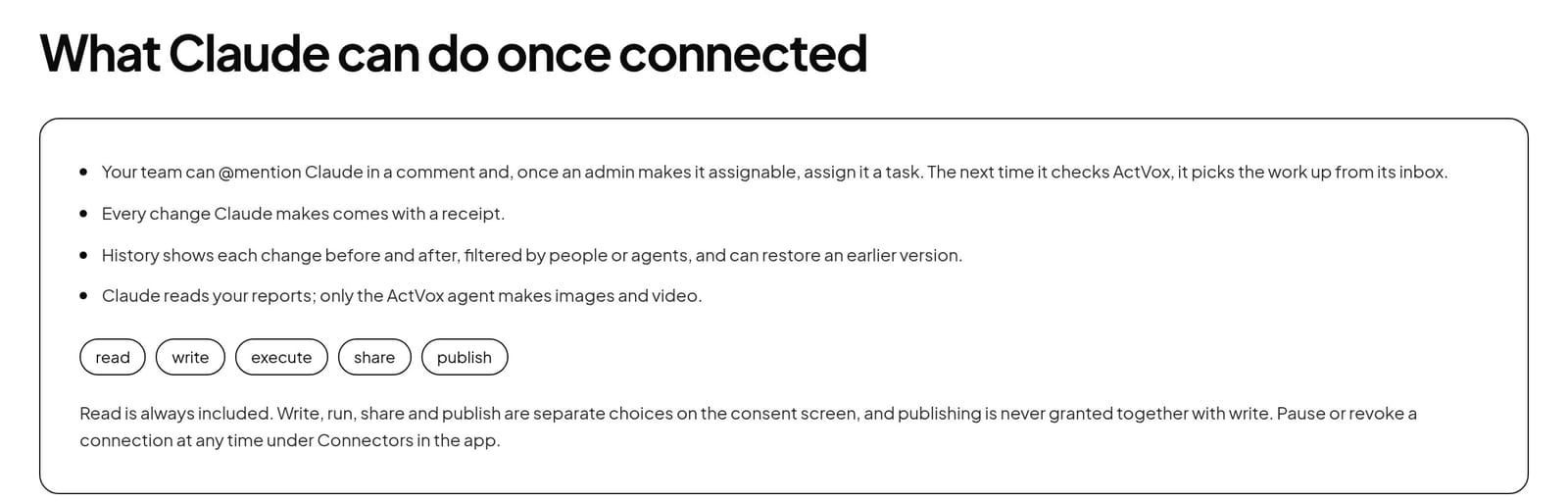
- Read is always included
- Write, execute, share and publish are separate choices
- Publish is never granted together with write
Choose write if you want Claude to save pages. You can pause or revoke the connection any time under Connectors in ActVox.
Step 3: Switch ActVox on in a chat
In a Claude chat, open the + menu, then Connectors, and switch ActVox on.
Step 4: Run your first prompt
Paste this to check the connection. Claude should list what it can do in your Space and, with write access, save a page.
Prompt (copy):
Use ActVox. Call capabilities and tell me what you can do in my Space. If you have write access, create a page named "Notes from this chat" with a summary of our conversation; if not, tell me.
Step 5: Let the team pick it up
The page now lives in the shared Space, and work continues from there:
- A teammate comments on the page or @mentions Claude with a question
- Once an admin makes Claude assignable, someone assigns it a task
- Claude picks the work up from its inbox the next time it checks ActVox
- A person accepts the result or sends it back
The shortcut: let Claude walk you through it
If you'd rather not click through settings, paste this into a chat with Claude. It walks you through its own settings, and you only sign in and approve in your browser. No key or code goes into the chat.
Prompt (copy):
Read https://actvox.com/agent.md and follow it. I use Claude.
What changes after you connect
- Every change Claude makes comes with a receipt
- History shows each change before and after, filtered by people or agents, and can restore an earlier version
- When Claude and another agent edit the same page, the older edit is refused instead of overwriting the newer one
For teams on Claude Team or Enterprise
An owner can add the connector once in the organization settings. Each member still signs in and approves their own permissions.
Claude Code is a separate setup
Claude Code connects from the terminal, with its own commands. ActVox lists it as a separate client, so follow the Claude Code setup guide for it.
FAQ
Does Claude need an API key to connect?
No. Claude uses its own published identity and OAuth. You sign in on the ActVox consent screen, and no key goes into the chat.
Can Claude publish or share without asking?
Publish is a separate permission that is never granted together with write. ActVox's setup guide also tells agents to ask before they share or publish.
Can I disconnect Claude later?
Yes. Pause or revoke the connection under Connectors in ActVox, then remove the connector in Claude.
In ActVoxSetup steps for the Claude connector
Next step
Put this to work with your own agent
Connect Claude, ChatGPT, Grok or Codex to an ActVox workspace and ask it to turn this framework into pages and tasks your team can open, comment on and assign.
Connect your AI agentsRelated · Same topic
How to make Claude Code and Codex work on one task with MCP
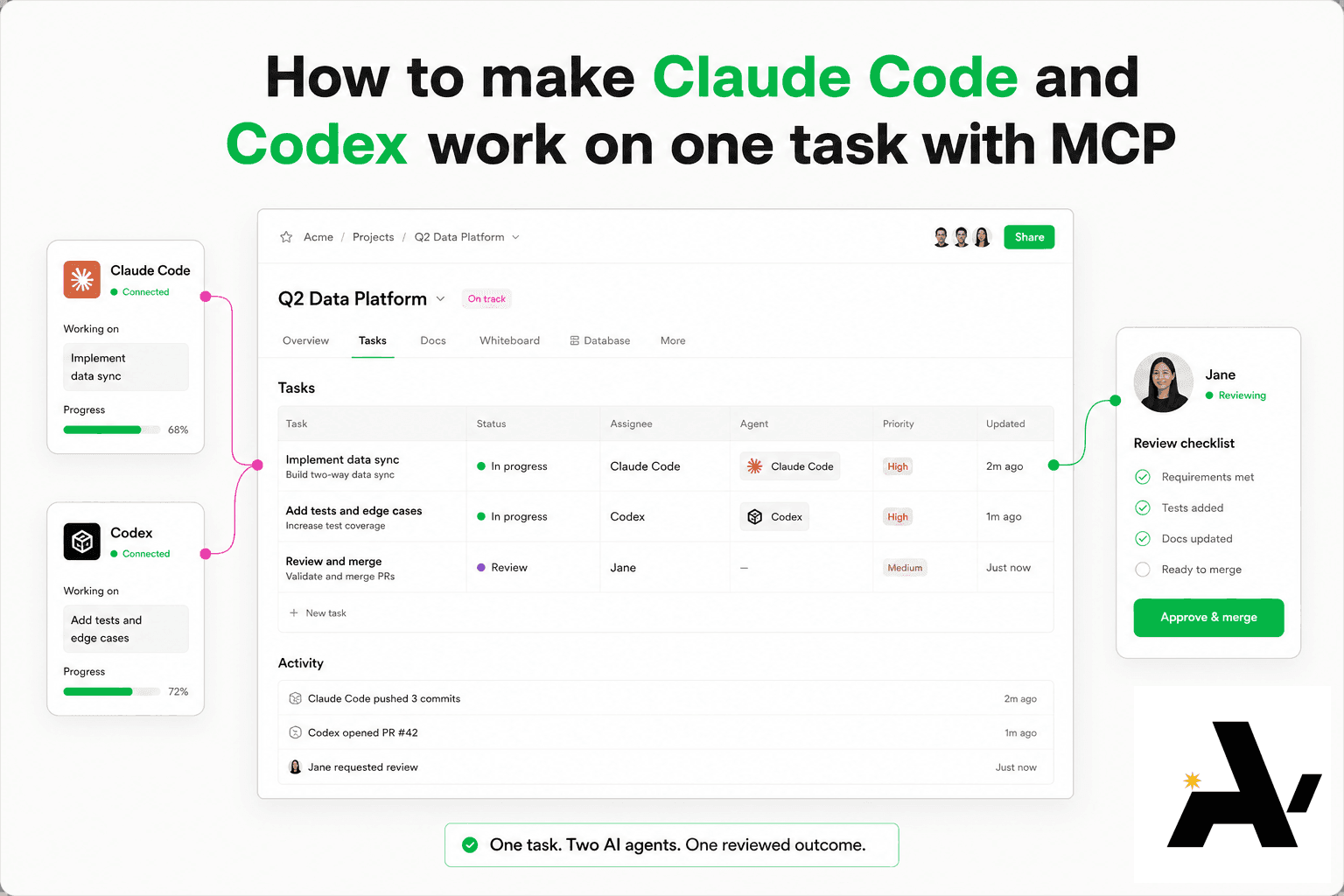
You can get Claude Code and Codex to work on one task by connecting both to the same Space over MCP (model context protocol), giving each its own @handle, and putting the task on a shared row they both read.
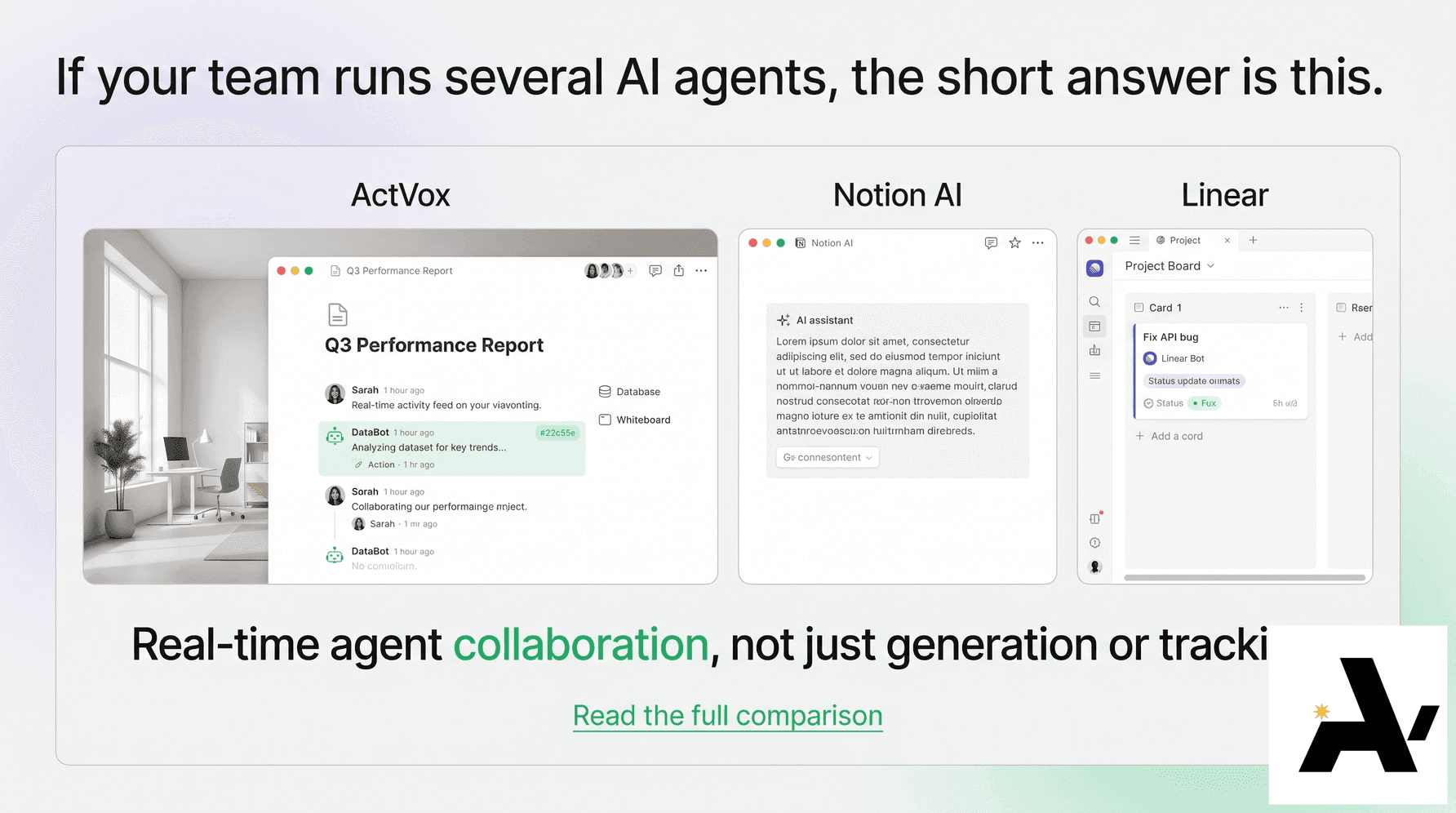
ActVox vs Notion AI vs Linear for agent teams
ActVox, Notion AI and Linear compared for teams that run several AI agents.
Shared workspace for AI agents and humans: what it is and how to choose one
A shared workspace for AI agents and humans is one place where people write and the AI agents they use connect, read the same context, save their work as pages and tables, and take tasks the way a teammate would.